

Android data loss rarely looks like just one problem. Sometimes it’s a photo folder deleted by mistake. Sometimes it’s a phone that got rooted, bricked, or stuck in a boot loop after an update. Sometimes it’s a factory reset triggered by accident, or a cracked screen that won’t let you tap “confirm” on anything. Each situation calls for a slightly different fix, and a tool that handles one well doesn’t necessarily handle the others.
Here’s a rundown of the tools actually worth considering in 2026, what each one is genuinely good at, and where the limits sit. One thing worth knowing upfront: Android phones vary a lot by manufacturer, Android version, and whether the device is rooted, so nothing on this list works identically across every phone. Keep that in mind as you match a tool to your own situation.
How Android Data Loss Actually Works
Deleting a file on Android doesn’t wipe it immediately. The file system just marks that space as free to reuse, and the actual data sticks around physically until something new gets written over it. That’s why speed matters so much here. The longer you keep using the phone after noticing something’s gone, the more chances new app data, photos, or background writes have to land right on top of what you’re trying to save.
There’s a wrinkle on Android that iPhones don’t really have. Most modern Android phones encrypt their storage by default, and pulling data off internal storage without root access is genuinely harder than recovering from an SD card, since third-party software can’t always reach the file system on internal storage the way it can with an external card. That’s exactly why the tool you choose, and whether it can actually work at your phone’s access level, matters more here than on other platforms.
1. Stellar Data Recovery for Android
Best overall, and where I’d start no matter what the situation is.

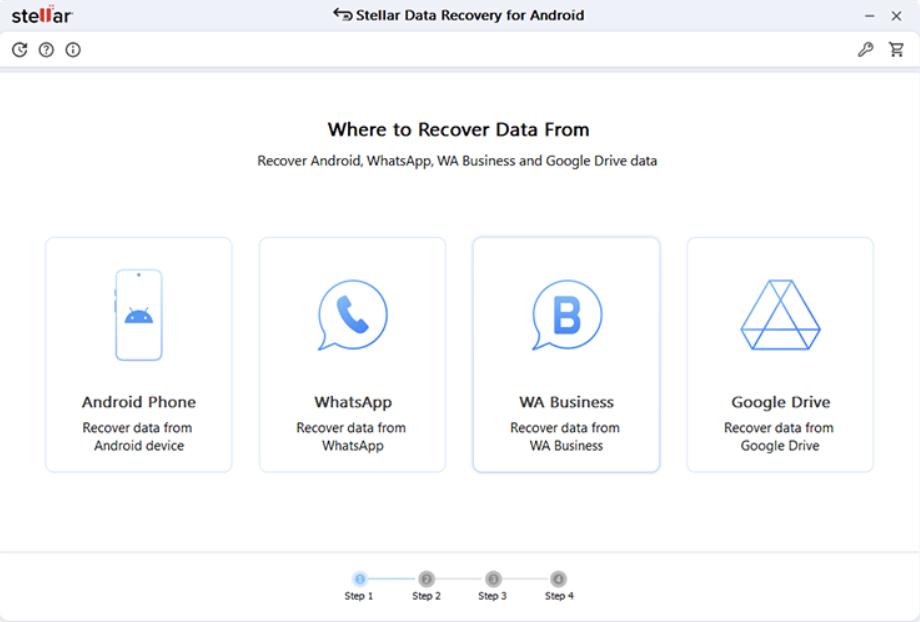
Stellar earns the top spot because it’s genuinely built around how messy Android Data Recoveryactually is, rather than assuming one method works for every phone. It pulls data from both internal storage and SD cards, and it covers photos, videos, contacts, call logs, messages, and WhatsApp chats, which matters since losing a conversation thread stings just as much as losing photos for a lot of people.
A few things about it hold up under scrutiny:
It works on both rooted and non-rooted phones, switching its scanning approach depending on what access level your device allows, rather than demanding root across the board the way some tools do.
There’s a proper deep scan for formatted or corrupted storage. If a quick scan doesn’t find what you’re after, especially after a factory reset, the deep scan hunts for file signatures directly instead of relying on a file system index that’s already broken.
You get a preview before committing to anything. Thumbnails and content, right there, so you’re not paying or waiting around on a guess.
It covers a wide range of brands, Samsung, Google, OnePlus, Xiaomi, and others, which counts for a lot given how fragmented Android actually is compared to iOS.
And the whole process runs from a Windows or Mac computer with the phone connected, which keeps the heavy scanning off the device itself and avoids piling more writes onto the exact storage you’re trying to recover from.
The honest catch: saving the recovered files needs a paid license, though scanning and previewing cost nothing, so you’ll know if your data’s actually reachable before spending anything. And root-dependent recovery on a non-rooted phone is inherently more limited than on a rooted one. That’s a limit baked into Android’s security model, not something any software can just work around.
For the widest range of real situations, accidental deletion, a formatted SD card, a factory reset, this is the one that gives you the best shot without needing you to become an Android systems expert overnight.
2. DiskDigger: Free, Root-Optional, Good for Photos
Best free pick if photos are mainly what you’re after.
DiskDigger is free, with a paid version unlocking more file types, and it can run without root for basic recovery, though rooting the phone opens up a full-device scan instead of just the storage the app can normally reach. It’s particularly solid at pulling back photos and a handful of other media types after a simple deletion.
What’s good: the free tier is actually usable, no root required for basic scans, and the interface stays simple for what is otherwise a fairly technical tool.
What’s not: without root, it’s stuck working with storage areas the app can actually access, which on a lot of modern phones excludes internal storage entirely. And anything beyond photos and basic media is limited in the free version.
A decent first free attempt if you’ve lost a photo, less useful if it’s messages, contacts, or a phone that’s already been reset.
3. Dr.Fone: Comprehensive Paid Suite
Best if you want recovery bundled with a broader phone management toolkit.
Dr.Fone covers a lot of the same ground as Stellar, photos, messages, contacts, and so on, but it’s positioned as one piece of a bigger suite that also handles phone transfers, backups, and system repair.
What’s good: a broad feature set beyond just recovery, and it gets updated regularly to keep pace with new Android versions.
What’s not: that broader toolkit means you’re often paying for a bunch of features you’ll never touch if recovery is genuinely all you need. Some users also report shakier results specifically with non-rooted internal storage recovery.
Worth a look if you want an all-in-one phone management suite and recovery is just one feature among several you’ll actually use.
4. FonePaw Android Data Recovery: Straightforward, Windows-Focused
Best for people who want something simple and paid, without extra bells and whistles.
FonePaw covers the core categories, contacts, messages, photos, videos, with a fairly linear scan-and-recover workflow and not much else going on.
What’s good: a clean, uncomplicated interface, and it does a reasonable job with SD card recovery specifically.
What’s not: the Mac version has historically lagged behind Windows, and internal storage recovery without root runs into the same fundamental ceiling every non-root tool hits.
A solid, unfussy pick if you’re on Windows and want something simpler than a full suite.
5. Android Data Recovery via ADB (Manual, Free, Advanced)
Best for people who are genuinely comfortable with the command line.
For rooted phones, Android Debug Bridge (ADB) paired with free command-line tools can pull raw data straight off the device for manual analysis. This isn’t really a packaged product so much as a method, use ADB to access the phone, then run a file-carving tool on the extracted data to dig out anything recoverable.
What’s good: completely free, and it gives you as much control as you’re willing to exercise.
What’s not: it requires root, comfort with the command line, and a lot more manual effort than any packaged software asks for. Not realistic if you’re under time pressure or don’t already know your way around a terminal.
Really only for advanced users, hobbyists, or a genuine emergency where nothing else is an option.
A Word on Root Access
Root access comes up constantly in these conversations because it genuinely changes what’s possible. A rooted phone gives recovery software direct access to the whole file system, internal storage included, which improves your odds a lot. A phone that isn’t rooted restricts software to whatever Android’s permission model allows, which is usually fine for SD card recovery but noticeably more limited when the problem is internal storage.
If your phone isn’t rooted and you’re facing a serious internal storage loss, rooting it just for a one-time recovery attempt is technically possible, but it’s a real risk. Rooting can trigger a factory reset on some devices and void your warranty, so weigh that carefully, and look into your specific model before deciding anything.
What I’d Actually Do Right Now
Stop using the phone actively, since every new write chips away at your odds. If it’s an SD card problem, pull the card and use a dedicated reader instead of the phone itself. Connect to a computer and start with Stellar Data Recovery for Android, since it covers the widest range of situations without demanding root. Check the preview before deciding anything. If you’d rather go free and you’re specifically after photos, DiskDigger is a reasonable fallback.
Avoiding a Repeat
Turn on automatic backup to Google Photos or whatever your manufacturer offers, so your photos aren’t living solely on the device. Turn on contact sync to your Google account too, since that’s one of the easiest losses to prevent entirely. Back up messages periodically if your app supports it. And treat that factory reset confirmation with real suspicion, since one careless tap there is responsible for more lost Android data than almost anything else on this list.
Android’s fragmented ecosystem makes recovery genuinely messier than it is on more uniform platforms, but the fundamentals hold either way. The data’s usually still there, speed matters more than people expect, and picking the right tool for your specific phone and access level is what separates getting it back from losing it for good.